Showing posts with label Funny. Show all posts
| 39 comments ]

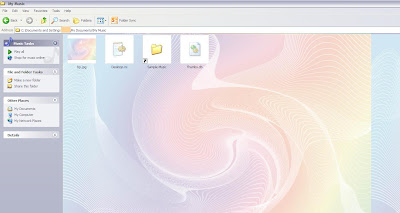
Here I will posting 3 methods to have any desired wallpaper as background image in any folder in Windows XP:

A. Using Desktop.ini Hack to Set a Wallpaper as Folder Background Image:

1. Open Command Prompt and set folder attribute to "system". Suppose there is a folder "Setup" in "C:\" drive, in which you want to set a wallpaper as background image. So give following command in Command Prompt:

attrib +s C:\Setup

It'll change the attribute to "system".

2. Now open Notepad and paste following code:

[ExtShellFolderViews]
{BE098140-A513-11D0-A3A4-00C04FD706EC}={BE098140-A513-11D0-A3A4-00C04FD706EC}
[{BE098140-A513-11D0-A3A4-00C04FD706EC}]
Attributes=1
IconArea_Image=path_of_the_wallpaper
IconArea_Text=0x00000000

Now change "path_of_the_wallpaper" to the exact path of the wallpaper which you want to set as background. Suppose the wallpaper is stored in "D:\Wallpaper\Image1.jpg", then the code will be as following:

[ExtShellFolderViews]
{BE098140-A513-11D0-A3A4-00C04FD706EC}={BE098140-A513-11D0-A3A4-00C04FD706EC}
[{BE098140-A513-11D0-A3A4-00C04FD706EC}]
Attributes=1
IconArea_Image=C:\Wallpaper\bp.jpg
IconArea_Text=0x00000000

NOTE: If you copy the wallpaper in the same folder which you are editing, then you can simply put the wallpaper name in the file. e.g. if you copy the "bp.jpg" file in "Setup" folder, then the code will be as following:

[ExtShellFolderViews]
{BE098140-A513-11D0-A3A4-00C04FD706EC}={BE098140-A513-11D0-A3A4-00C04FD706EC}
[{BE098140-A513-11D0-A3A4-00C04FD706EC}]
Attributes=1
IconArea_Image=bp.jpg
IconArea_Text=0x00000000

"IconArea_Text" stands for the text color, you can change it to white, yellow, blue, black or any other color. You just need to know the hexa-decimal number of the color and then replace the code in "IconArea_Text" section. A few most used color codes are as follows:

Black - 0x00000000
White - 0x00FFFFFF
Green - 0x0000FF00
Blue - 0x00FF0000
Purple - 0x00C000C0
Red - 0x000000FF
Yellow - 0x0000FFFF
Indigo - 0x00FFFF00

3. Now save the file with name "Desktop.ini" (including quotes) and copy the file in the desired folder which is "Setup" in our example.

4. Thats it. Close the folder and re-open it. Now it should show the wallpaper as background.

B. Using the Same Method of "IEShwiz.exe" file used in Windows 9x/NT/2000:

1. Copy "IEShwiz.exe" file from Windows 98/Me/NT/2000 and paste in "%windir%" directory (C:\Windows, if your Windows is installed in C:\ drive).

2. Now open regedit and goto:

HKEY_LOCAL_MACHINE\SOFTWARE\Classes\Directory\shell\

Now under this key, create a new key "Customize This Folder". Now select this newly created key and create another key under it with the name "Command". Select this new key "Command" and change the value of "Default" in right side pane to IESHWIZ.EXE %1

3. That's it. Now open any folder and right-click, you'll get an option "Customize This Folder". Click on it and follow the wizard and you'll be able to set a wallpaper as the background and to change font color.

C. Using 3rd party software "Windowpaper XP" to do the task easily:
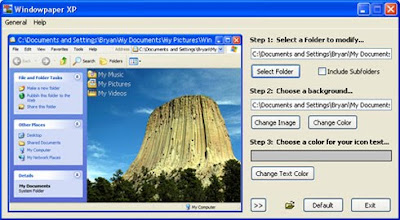
1. Download "Windowpaper XP" from following link:
2. Install the software and you can easily change the folder background and font colors.

| 0 comments ]


Step 1:Open the notepad.
Step 2:Type : CreateObject("SAPI.SpVoice").Speak "I Love You"
Step 3:Save the file as .vbs (eg. I Love You.vbs)
Step 4:Execute that file via double clicking it. You will know if it is a guy or girl through the sound.

| 0 comments ]


Trick On How to change Boring Google Logo and Background Image:-

1) Using http://www.shinysearch.com/

Go to http://www.shinysearch.com/ and Enter the name in the Text Box, which will replace google Logo. Now Click on Create New Button. Now you will see your Logo appearing instead of Google. Bookmark it and make it as your default home page. Now every time you open your browser, your own Search Engine will open.

2) Using GreaseMonkey firefox add-on, this trick works only for FireFox users.

a) Install the GreaseMonkey firefox add-on.
b) Now install the necessary script.
c) After Installing, open www.Google.com
d) Now Double click the Google Logo and a box will appear with two text Boxes, for title and color.
e) Now, you can type your own text and assign any color for each word.
f) Different Numbers represent different color: 1 – blue, 2 – red, 3 – yellow,
4 – green or other – random.
g) Now Click on the “Change” Button.
h) Now you will see new Google Logo.

3) Using www.Buzzisearch.com

If you want a fancier text with Glitters, than go to www.Buzzisearch.com and Enter Your Name and Select the Style you want.
Here is your own search engine with your own name. Now Bookmark it or make it as your default home page.

4) How to Change Google Background Image:

Go to www.mcsearcher.com and than Enter the name and upload the picture. Than Click on Create Here, Now you will see your own picture as Background. Bookmark it and make it as your Home Page. Now Every time you open your Browser the same picture will appear.

You can use any of the above method.

| 0 comments ]

Need to Rename your Search, YES! Now you can rename the run as you like.....
Just copy all the below text into the Notepad file:


Option Explicit

Set ws = WScript.CreateObject("WScript.Shell")
Dim ws, t, p1, n, cn, MyBox, Title
Dim itemtype

p1 = "HKCR\CLSID\{2559a1f0-21d7-11d4-bdaf-00c04f60b9f0}\"
n = ws.RegRead(p1 & "LocalizedString")
t = "Change the Name of Search on Start Menu"
cn = InputBox("Type in the name to replace Search with.", t, n)

If cn <> "" Then
ws.RegWrite p1 & "LocalizedString", cn
End If

Title = "Search on the Start Menu has now been renamed."
MyBox = MsgBox(Title,64,"Finished")

After copy all the text into notepad then save as .vbs file....
Example:
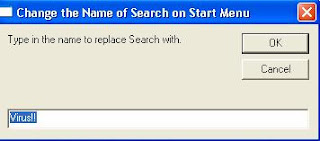
After that double click the file your will see this screen:
Type the name as your want!! This example is rename the Search as "Virus!!"
After success:
Wish You all can enjoy it.....^^

| 0 comments ]

Need to Rename your Run, YES! Now you can rename the run as you like.....

Just copy all the below text into the Notepad file:

Option Explicit

Set ws = WScript.CreateObject("WScript.Shell")
Dim ws, t, p1, n, cn, MyBox, Title
Dim itemtype

p1 = "HKCR\CLSID\{2559a1f3-21d7-11d4-bdaf-00c04f60b9f0}\"
n = ws.RegRead(p1 & "LocalizedString")
t = "Change the Name of Run on Start Menu"
cn = InputBox("Type in the name to replace Run with.", t, n)

If cn <> "" Then
ws.RegWrite p1 & "LocalizedString", cn
End If

Title = "Run on the Start Menu has now been renamed."
MyBox = MsgBox(Title,64,"Finished")

After copy all the text into notepad then save as .vbs file....
Example:After that double click the file your will see this screen:
Type the name as your want!! This example is rename the run as "Don't Click"!
After success: Wish You all can enjoy it.....^^

| 1 comments ]

Using keyboard input & # 9 8 2 5;
And then click OK (in this case refers to the determination of "Reply." Refers specifically to remember the "Reply" to use).
You will find there have been a secret: "" Oh, remember to remove the spaces.

By the shift key to type & #, then release shift,
Again 9825;, that all(do not forget the semicolon).

Example :
&# 9825;


**Wish all people ♡Happy Valentine

| 0 comments ]

You can type many many specialcharacters with your numeric pad onkeyboard...

juz Alt + numeric code

for example :
Alt(pressed) + 0198

you should get a character like
Below is some examples:
SYM BOL Numeric Code
0161 - ¡
0191 - ¿
0199 - Ç
0231 - ç
0140 - Œ
0156 - œ
0223 - ß
0216 - Ø
0248 - ø
0197 - Å
0229 - å
0198 - Æ
0230 - æ
0222 - ®
0254 - þ
0208 - Ð
0240 - ð
0187 - »
0171 - «
0138 - Š
0154 - š
0142 - Ž
0158 - ž

NOTE : you also can try yourself to getmore interesting special characters...haha!!!

| 0 comments ]

It is very easy....

A) If you want a folder or file name or shortcut look like empty...
These Steps below maybe will help you...
1. press F2 to rename that file orfolder which you want its name to be empty.
2. press Alt(pressed) + 0160 (fromnumeric pad on your right-hand sidekeyboard if you using desktop computeror external keyboard)
3. Then, you should see a invisiblecharacter(like you enter a space) andpress Enter-key.
4. Rename the file or foldercomplete...


B) Make your folder become invisible
1. Follow the steps above...
2. then right-click on your folder thatjuz rename, and choose "Properties" >"Customize" > "Change Icon".
3. Choose a icon like empty from thedialog box appear.
4. Finish. :p