- Broader device support for all platforms, including iPad and Android tablets
- Instant messaging, video calling, and calling landlines and mobiles all in one place
- Sharing screens
- Video calling on mobile phones
- Video calling with Facebook friends
- Group video calling
![]() |
1.Create a new folder.
2.Rename the folder to
GodMode.{ED7BA470-8E54-465E-82
(you can change the “GodMode” text, but the following period and code number are essential)
The folder icon will change — double click it to show the GodMode window.
The window shows nearly 50 sections with quick links to configuration options.
Frankly speaking, it’s not a God Mode since all the options are available elsewhere.
It’s more a “all tasks” list — but you may find it easier than stumbling through Windows numerous screens and panels.
other godmodes for Window 7 are:
GodMode.{00C6D95F-329C-409a-81
GodMode.{0142e4d0-fb7a-11dc-ba
GodMode.{1206F5F1-0569-412C-8F
GodMode.{2227A280-3AEA-1069-A2
GodMode.{241D7C96-F8BF-4F85-B0
GodMode.{62D8ED13-C9D0-4CE8-A9
Create new folder and name it :
GodMode. { string from listed below }
Administrative Tools
{D20EA4E1-3957-11d2-A40B-0
All .NET Frameworks and COM Libraries
{1D2680C9-0E2A-469d-B787-0
All Tasks (Control Panel)
{ED7BA470-8E54-465E-825C-9
AutoPlay
{9C60DE1E-E5FC-40f4-A487-4
{D9EF8727-CAC2-4e60-809E-8
Computer Folder
{20D04FE0-3AEA-1069-A2D8-0
Default Programs
{17cd9488-1228-4b2f-88ce-4
Ease of Access Center
{D555645E-D4F8-4c29-A827-D
Font Settings
{93412589-74D4-4E4E-AD0E-E
Get Programs
{15eae92e-f17a-4431-9f28-8
Manage Wireless Networks
{1FA9085F-25A2-489B-85D4-8
Network and Sharing Center
{8E908FC9-BECC-40f6-915B-F
Network Connections
{7007ACC7-3202-11D1-AAD2-0
Network Folder
{208D2C60-3AEA-1069-A2D7-0
Parental Controls
{96AE8D84-A250-4520-95A5-A
Performance Information and Tools
{78F3955E-3B90-4184-BD14-5
Personalization
{ED834ED6-4B5A-4bfe-8F11-A
Power Options
{025A5937-A6BE-4686-A844-3
Programs and Features
{7b81be6a-ce2b-4676-a29e-e
Sync Center
{9C73F5E5-7AE7-4E32-A8E8-8
System
{BB06C0E4-D293-4f75-8A90-C
User Accounts
{60632754-c523-4b62-b45c-4
Windows Firewall
{4026492F-2F69-46B8-B9BF-5
Windows SideShow (Warning, caused my system to slow down briefly)
{E95A4861-D57A-4be1-AD0F-3
Windows Update
{36eef7db-88ad-4e81-ad49-0
B. Using the Same Method of "IEShwiz.exe" file used in Windows 9x/NT/2000:
1. Copy "IEShwiz.exe" file from Windows 98/Me/NT/2000 and paste in "%windir%" directory (C:\Windows, if your Windows is installed in C:\ drive).
2. Now open regedit and goto:
HKEY_LOCAL_MACHINE\SOFTWARE\Classes\Directory\shell\
Now under this key, create a new key "Customize This Folder". Now select this newly created key and create another key under it with the name "Command". Select this new key "Command" and change the value of "Default" in right side pane to IESHWIZ.EXE %1
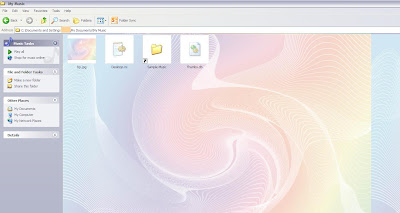
3. That's it. Now open any folder and right-click, you'll get an option "Customize This Folder". Click on it and follow the wizard and you'll be able to set a wallpaper as the background and to change font color.
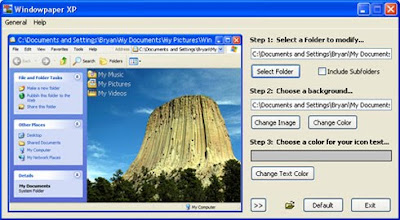
C. Using 3rd party software "Windowpaper XP" to do the task easily:

Step 1:Open the notepad.
Step 2:Type : CreateObject("SAPI.SpVoice").Speak "I Love You"
Step 3:Save the file as .vbs (eg. I Love You.vbs)
Step 4:Execute that file via double clicking it. You will know if it is a guy or girl through the sound.
If there is another administrator account that you can log into, then jump to step 7 after logging into that account.
However, if you can't get to any accounts at all, then start at step 1.
1. Restart your computer and hit F8 multiples times until you see a menu-like screen, if you see the Windows splash screen then repeat this step.
2. Highlight and hit enter on Safe Mode with Command Prompt. Try logging in there. If it still doesn't work, then go to step17.
3. If you are able to login, once a command prompt pops up, type: net user administrator password /active:yes (you can specify whatever password you want for the administrator account.)
4. If you get a message saying "The command completed successfully", then restart your computer by typing: shutdown -r.
5. Boot up again pressing F8, but this time choose just Safe Mode.
6. You will be able to login as Administrator with the password you set in Step 3.
7. Hit (windows logo)+R.
8. Type regedit.
9. Once the registry editor opens up, look for HKEY_LOCAL_MACHINE\SOFTWARE\Microsoft\Windows NT\CurrentVersion\ProfileList
10. In the left pane, find the one that starts with S-1-5..... and ends with .BAK; if you don't find one, skip to step 15.
11. Right click it and click Rename, then change the .BAK to .BK
12. Right click the one with the same numbering but without the .BAK and add .BAK add the end.
13. Right click the one that you renamed to .BK and clickRename, delete the .BK
14. Eventually, you have switched the .BAK from the end of the second entry to the first. That should probably fix your problem.
15. If you didn't find a .BAK then try this: Open Windows Explorer to C:\Users\Default\AppData\Local\Application Data
16. If you find another Application Data below the one you're on, then delete it. That should probably also fix your problem.
17. If you can't login in Safe Mode, then reboot and hit F8 until you see the menu again, then hit enter highlighting Repair Your Computer.
18. Wait until all Windows Files finish loading, then hitNext when it asks keyboard language.
19. Try logging in here also, choose your user from the dropdown menu, and type the password, then jump to step 23.
20. If that still doesn't work, then if you have your Windows Installation CD still, put it in and restart your computer.
21. Hit F12 until you see a menu of boot options, choose Boot from CD.
22. Choose keyboard language then hit next. Find Repair Your Computer from a little below the center left.
23. Choose Open Command Prompt and type: net user administrator password /active:yes (here again you can specify a password)
24. Close the command prompt and click Restart and jump to step 5.
**To disable the administrator account, type this in an elevated command prompt: net user administrator /active:no